The short version
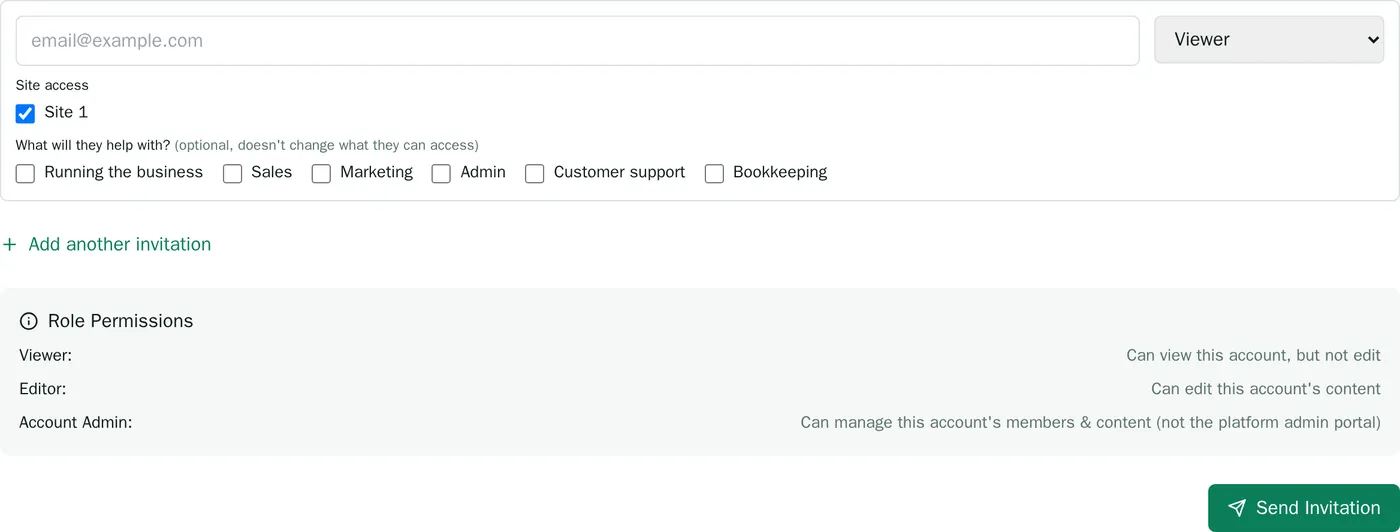
Invite people from Team, give each one the smallest role that does the job, and untick any site they shouldn’t open. The step-by-step lives in the help article, which also opens inside your portal.
You don’t have to run your website and CRM alone. Every account can invite teammates: a business partner, an employee, a marketing assistant. Each gets a role that controls what they can see and change.
Who can invite whom
Only the owner can add an Account Admin or a Virtual Assistant. An admin can invite Editors and Viewers, but not other admins. That’s deliberate: nobody can hand out more power than the owner chose to give.
The four roles
| Role | Best for | What they can do |
|---|---|---|
| Viewer | Someone who only needs to look | Look at leads, connections and email settings, without changing them |
| Editor | Day-to-day helpers | Edit pages and content; work their own leads, leads given to them and unclaimed ones. No deleting, no approvals |
| Account Admin | A trusted operator | Almost everything: every lead and deal, campaign approvals, domains, connections. Billing stays with the owner |
| Virtual Assistant | A marketing helper | An Editor with pages, social accounts and Notion on, and themes and other connections off |
Editors don't see every lead
Viewers and Editors see the leads that are theirs, given to them, or not yet claimed. Admins and the owner see all of them. It stops a growing team from stepping on each other’s conversations.
Keeping someone to certain sites
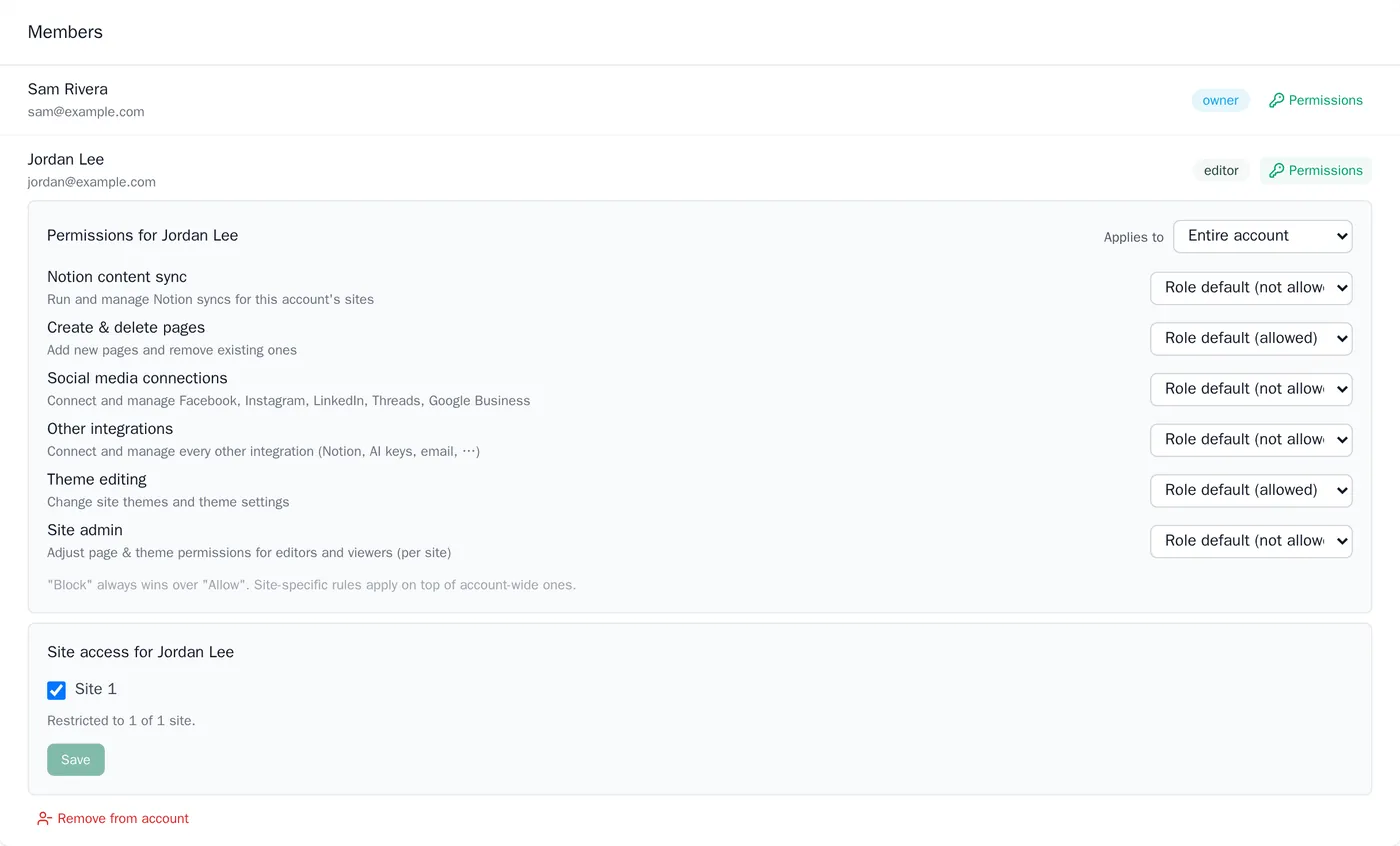
Every site is ticked when you invite someone. Untick the sites they shouldn’t open. The owner can change this later from Team, then Permissions next to the person’s name.
It's enforced, not just hidden
A teammate limited to some sites can’t open the others, even by typing a web address. The check runs on every request, not just in the menus. Records that belong to the whole account, such as an account-wide contact, stay shared.
What your teammate sees
The invite comes from noreply@mail.growthautomations.com, so tell them to watch for it. (Where Your Email Actually Comes From explains why it’s our address and not yours.) A new teammate joins with a 6-digit code sent to their email, with no password to set. Someone who already has a login signs in with the invited email and accepts. The link lasts 7 days, and you can resend it.
To change someone’s role, remove them and invite them again. Only the owner can remove a teammate, and they lose access straight away.